
Shared Hosting
Download
The zip/tar file from the downloads’ site contains all the dependencies. Source code is not suitable for a fresh installation.
Uploading Files On Shared Hosting
When uploading the files, you have several options on how to. These mainly apply
to shared hosts. For your own server or if you have control over the vhost
files, upload/extract the files to your desired location and point the vhost to
the /public folder.
Creating a Subdomain
Creating a subdomain is the easiest and more recommended method, especially for
shared hosting. This works well if you have a landing or promo page on your
site's main domain, and then a subdomain like crew.yourva.com or something
similar.
Upload phpvms to a directory with the name of your subdomain, for example,
demo.vmshost.io. It should be parallel to the public_html folder (as above).
In this example, I want to create the subdomain demo.vmshost.io.
First, create a folder to extract phpvms into:
/home/youruser
  demo.vmshost.io < Extract phpvms files into here
  public_ftp
  public_html
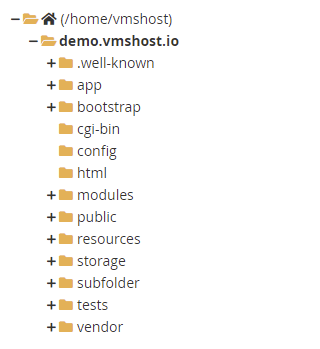
Next, extract the phpvms files into this folder, so it looks something like:
/home/youruser
  /demo.vmshost.io
    /app
    /config
    /public
    ...
Next, create a subdomain cPanel, go to "Subdomains", and create the subdomain.
For the "Document Root", enter the path above, with the public folder -
demo.vmshost.io/public. Usually, cPanel will autocomplete the path to be the
subdomain - so just add /public to the end of it.
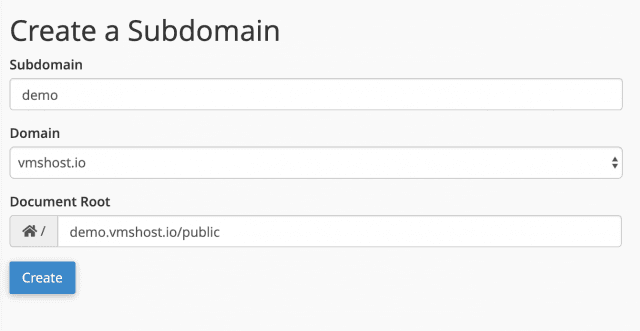
It will look like this:

Visit Your Site
When you visit your site, the installer will run and you'll be prompted to create a new user